Minecraft is all about spending hours building and customizing the worlds. Nobody wants to lose their progress in Minecraft for any reason. There are some methods to recover your game progress in case of a phone crash, accidental deletion, or an update.
The best solution to this is to create a backup for them. It will ensure your worlds and buildings stay safe if something happens to your device. So, here you will learn how to back up your Minecraft World and account without any data loss.
Why Should You Back Up Minecraft?
You need to spend plenty of time and effort in building the worlds and exploring Minecraft. So, it will be really stressful and frustrating to lose progress and the world. Having a backup will help you avoid this stress.
Protects Your World: Backup will help you save your world and progress if your phone breaks or the game is deleted accidentally.
Avoid Data Loss: The updates or game crashes can cause your game data to be lost. However, you can avoid this loss by having a backup of your Minecraft world and account.
Keep Your Custom Settings: The backing up of your game helps you to save your game controls, resources, and preferences.
What Files and Data Should You Back Up?
Save these files and folders to keep your worlds and progress safe:
Minecraft Worlds: You must create a backup of your worlds. These are your buildings and creations.
Resource Packs: Create a backup of your custom textures and sounds that you add to your game.
Behavior Packs: You should also save and back up the add-ons to save your game changes.
Minecraft APK: It is the best choice to make a backup of the game file itself.
Minecraft Account Info: You must keep your account info safe and remember it.
How to Back Up Minecraft Worlds Manually on Android
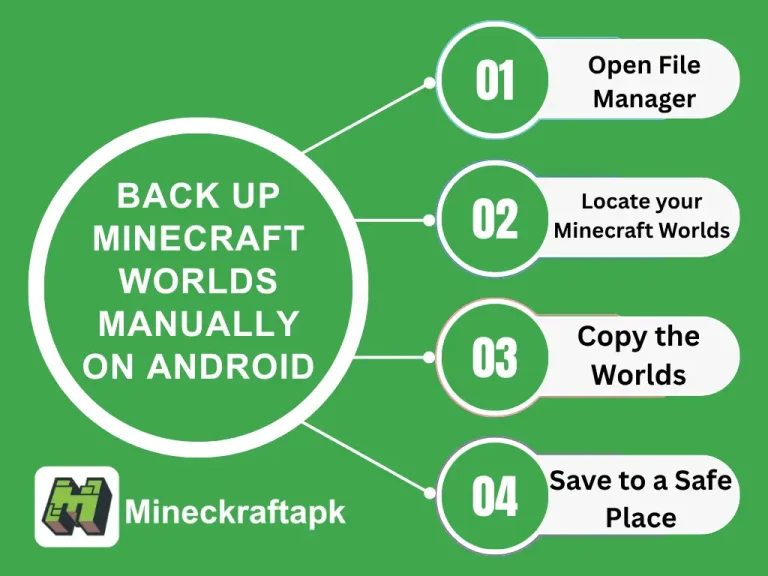
It is the easiest way to create a backup of Minecraft worlds:
Open File Manager: Open the file app or file manager of your device to find the world files.
Locate your Minecraft Worlds: Use the following command to locate and find each folder of your world. Internal Storage > games > com.mojang > minecraftWorlds
Copy the Worlds: Select the complete world folder to make its copy. This copy will help you save a backup of the world.
Save to a Safe Place: Save the copied folder to any safe storage like an SD card, a USB drive, any folder on your PC, or your cloud storage.
Back-Up Apps
The backup apps can also be used to create a backup for your Minecraft progress. They will automatically create backups for your game.
Recommended Backup Apps:
The following are some known and recommended backup apps for your Minecraft worlds and data:
Steps to Use Backup Apps:
How to Back Up Minecraft Worlds Using Your PC
It is a safe and organized way to save your Minecraft World and its progress:
Connect Your Phone to PC: Connect your phone to your PC using a USB cable. Enable the File Transfer (MTP) mode of your phone.
Locate Minecraft Worlds: Open the file explorer on your PC to find the Minecraft Worlds files.
Copy the Worlds: Copy all folders having the files of Minecraft Worlds to create a backup.
Paste to PC: Choose a destination folder and paste the copied folders. It will create a backup folder for your whole Minecraft Progress on a PC.
Back Up Your Minecraft APK Account
If you want to keep the same version of your game with custom changes, then back up the whole Minecraft APK. It will save the app file on your phone.
Steps to Backup Your APK:
How to Recover Minecraft Worlds from Backup
Locate Your Backup: Find the folder on storage where you have saved the Minecraft backup files.
Connect Your Phone (if using PC): If you are recovering from a PC, then connect your phone to the PC.
Open Minecraft Worlds Folder: Search and open the Minecraft Worlds folder from storage.
Copy Your Worlds Back: Copy your required world folders to recover them. Paste them into the Minecraft Worlds folder.
Check Minecraft: Open your Minecraft game to check your recovered worlds.
Conclusion
Backing up your Minecraft APK worlds is the best way to save your hard work. Backups are always helpful if your game crashes or has lost your phone. They will let you play your game, continuing with the same progress and settings. You can easily create backups manually, using backup apps or keeping them safe on a PC or cloud storage. So, these methods will help you to enjoy Minecraft without worrying about losing your world progress.