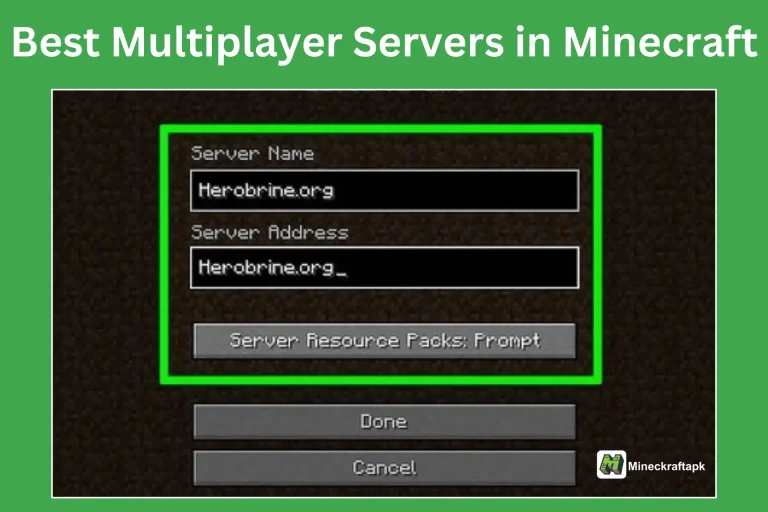
Making your own Minecraft Server is the ideal solution to build and share your world with other players. You can create and build your world with custom game rules. You can create a local or wlan server to connect with players from different networks.
What is a Minecraft Server?
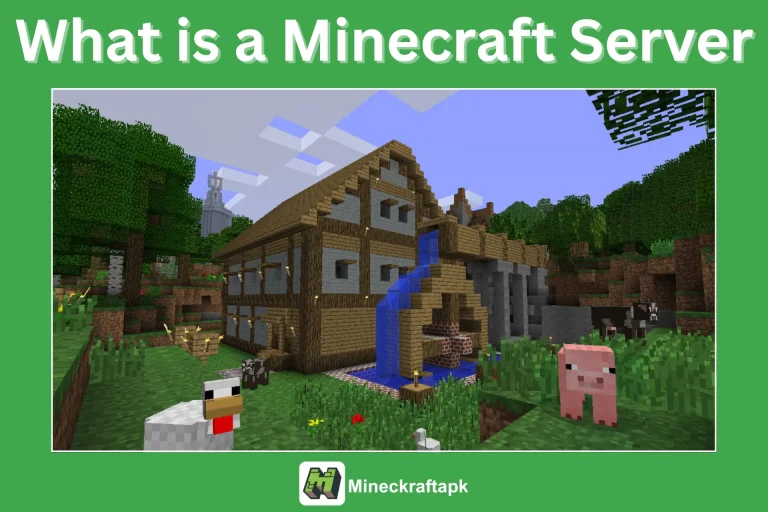
A Minecraft Server is your controlled place to play and build with others in the same world. The server keeps your world active so that anyone can join the game from anywhere. You have access to set up different game modes, add plugins, custom features, and restrict the access of players. You can make private or public Minecraft servers to experience amazing gameplay with others.
How to Create a Minecraft Server?
Install Java
A Minecraft server works with Java. To work it smoothly, install the latest version of Java on your system.
Create a Dedicated Folder
Make a new and separate folder to keep your server files and world data.
Download Minecraft Server
From the official website of Minecraft download and save the .jar file in the dedicated server folder.
Commands to Start Server
Open Command Prompt in the server folder. Use this command to start the server: “java -Xmx1024M -Xms1024M -jar (file name).jar nogui”.
Accept the EULA
Change the line from eula=false to eula=true in the eula file.
Run the Server Again
After changing the EULA file, start your server again. Use the same command in the command prompt to run the server. The command will create the necessary world files for your server.
Adjust Server Properties
- Open the file ‘server.properties’ to adjust your server properties.
- Find each line shown in the table below to set your required values.
| Setting Lines | Recommended Value |
|---|---|
| gamemode= survival | Survival, creative, or adventure |
| max-player=10 | Adjust according to your needs |
| difficulty=normal | Normal, hard, easy |
| level-name=world | Any name of your choice |
| online-mode=true | true is recommended |
| pvp=true | false to disable |
| motd=Welcome to my server | Welcome message |
Allow Firewall Access
If a prompt appears to ask for permissions for the Firewall from Java, then allow the access so players can join your server.
Port Forwarding Settings
Port forwarding settings allow players from other networks to join your server. If you do not set Port Forwarding, then only players sharing the same wifi with you can join your server. It is an optional step. With these commands, you can easily set Port Forwarding settings:
| Field | Recommended Entry |
|---|---|
| Service Name | Minecraft Server |
| Port Range | 25565 |
| Local IP Address | Your IPv4 address |
| Local Port | 25565 |
| Protocol | TCP/UDP |
| Status | enabled |
Play with Friends on LAN
If your friends are using the same wifi, you can play with your friends on your server. Please search for your IP address and send it to your friends. Tell them to use it to join your server. To play with friends on the same wifi, no Port Forwarding is required.
Conclusion
Making your Minecraft server allows you to control your world and play with other players. You can manage your world by giving permissions to players. After creating your server, share the IP address with others to join the server. With detailed steps discussed here, you can easily create and manage your Minecraft server.
FAQs-Frequently Ask Question
Can my friends and other players join my server from anywhere?
Your friends can only join your server from other networks if you have set up Port Forwarding on your router.
How can I find my IP address?
You need to search on Google to get your public IP. If you are looking for your IPv4, then type ‘ipconfig’ in the command prompt.
Can I change game modes while creating the server?
You can set the game mode in the server settings when you make your server.
How many players can join my server?
You can set the player limit for your server. It is recommended to allow 5-10 players to join your server.